






PlayStation 5 gaming has become a sensation all around the globe due to its amazing speed and performance. Nevertheless, even a state-of-the-art gaming system may sometimes be exposed to challenges such as slow download times, high ping rates, or poor connectivity. One of the least discussed yet most effective methods for enhancing your online gaming experience is configuring the DNS settings on your PS5.
This informative tutorial provides a comprehensive overview of DNS settings PS5, which includes the definition and purpose of DNS, changing your PS5 DNS settings, and the best PS5 DNS servers to utilize.
What Are DNS Settings?
The abbreviation “DNS” refers to Domain Name System. This system functions similarly to the phonebook of the internet. Instead of memorizing complicated numbers, DNS helps translate website names into numeric IP addresses to allow your gaming console to connect to servers via the internet.
While playing with your PS5, DNS acts as an intermediary that establishes the connection between your device and the appropriate servers.
Why DNS Settings Matter on PS5
Many gamers ignore DNS settings, assuming default settings are always best. However, changing DNS can provide several benefits:
Faster Download Speeds
A better DNS server can reduce the time it takes to connect to game servers, speeding up downloads and updates.
Reduced Lag and Ping
Optimized DNS can improve routing efficiency, resulting in lower latency during online gaming.
Improved Connection Stability
Using reliable DNS servers reduces disconnections and improves overall network performance.
Access to Better Servers
Some DNS providers help you connect to faster or less congested servers.
How DNS Affects Gaming Performance
When you launch an online game, your PS5 communicates with multiple servers. DNS helps your console find these servers quickly. A slow or inefficient DNS can delay this process, causing:
- Lag spikes
- Slow matchmaking
- Higher ping
- Delayed responses
By switching to a faster DNS, you reduce lookup time and improve the responsiveness of your connection.
Default DNS vs Custom DNS on PS5
Default DNS
Your Internet Service Provider (ISP) assigns default DNS settings. While convenient, they are often not optimized for speed or gaming.
Custom DNS
Custom DNS servers are provided by third-party companies that specialize in speed, security, and reliability. These are usually faster and more efficient.
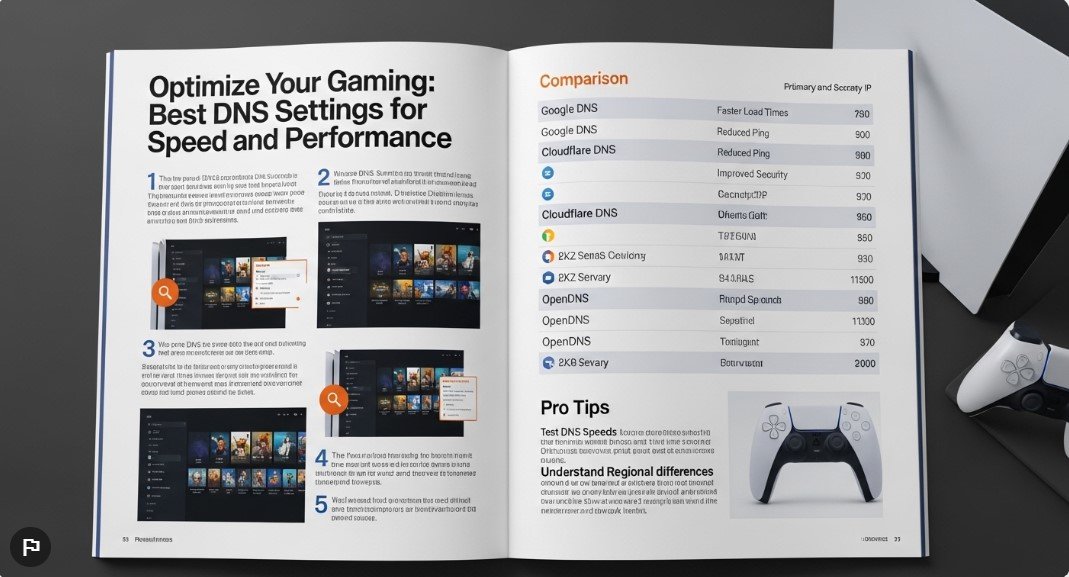
Best DNS Servers for PS5
Here are some of the most popular and reliable DNS servers you can use:
Google DNS
- Primary: 8.8.8.8
- Secondary: 8.8.4.4
Cloudflare DNS
- Primary: 1.1.1.1
- Secondary: 1.0.0.1
OpenDNS
- Primary: 208.67.222.222
- Secondary: 208.67.220.220
Quad9 DNS
- Primary: 9.9.9.9
- Secondary: 149.112.112.112
Each of these DNS providers offers different benefits, but Cloudflare and Google DNS are generally considered the fastest for gaming.
How to Change DNS Settings on PS5
Follow these simple steps to update your DNS settings:
Step 1: Go to Settings
- Turn on your PS5
- Navigate to “Settings”
Step 2: Open Network Settings
- Select “Network”
- Click on “Settings”
Step 3: Set Up Internet Connection
- Choose “Set Up Internet Connection”
- Select your Wi-Fi or LAN connection
Step 4: Choose Advanced Settings
- Select “Advanced Settings”
Step 5: Change DNS Settings
- Set DNS Settings to “Manual”
- Enter your preferred DNS (e.g., 1.1.1.1 and 1.0.0.1)
Step 6: Save and Test Connection
- Save settings
- Run a connection test
Manual vs Automatic DNS Setup
Automatic Setup
- Uses ISP DNS
- Easy but not optimized
Manual Setup
- Gives full control
- Allows better performance
Manual setup is always recommended if you want improved gaming performance.
How to Test DNS Performance on PS5
After changing DNS settings, you should test your connection:
- Go to Network Settings
- Select “Test Internet Connection”
Check for:
- Download speed
- Upload speed
- NAT type
Compare results before and after changing DNS to see improvements.
Best DNS Settings for Faster Downloads
If your main goal is faster downloads, try:
- Primary: 1.1.1.1
- Secondary: 1.0.0.1
This setup is known for fast response times and quick server resolution.
Best DNS Settings for Gaming (Low Ping)
For gaming, try:
- Primary: 8.8.8.8
- Secondary: 8.8.4.4
These settings are stable and widely used by gamers worldwide.
Common DNS Issues on PS5
Even after changing DNS settings, you might encounter issues:
Slow Internet Still
DNS improves lookup speed but doesn’t increase your internet plan speed.
Incorrect DNS Entry
Typing errors can cause connection failures.
ISP Restrictions
Some ISPs limit DNS performance.
Network Congestion
Heavy traffic can still affect speed.
Tips to Improve PS5 Internet Performance
DNS is just one part of optimization. Here are additional tips:
Use Wired Connection
LAN cable provides more stable connection than Wi-Fi.
Restart Router
Refreshing your network can solve many issues.
Update Firmware
Ensure your PS5 system software is up to date.
Reduce Network Load
Limit other devices using the internet while gaming.
DNS Settings PS5 for Different Regions
Performance may vary based on location. It’s best to test multiple DNS servers to find the fastest one in your area.
For users in Asia or Pakistan:
- Cloudflare often performs best
- Google DNS is a reliable backup
Are Free DNS Servers Safe?
Yes, most popular DNS providers are safe and widely trusted. However:
- Avoid unknown DNS services
- Stick to reputable providers
- Do not share sensitive information
DNS vs VPN for Gaming
Some gamers confuse DNS with VPNs.
DNS
- Improves speed and response time
- No encryption
VPN
- Encrypts data
- May slow down connection
For gaming, DNS is usually the better option.
Can DNS Reduce Lag on PS5?
Yes, but with limitations. DNS can reduce lag caused by slow server resolution, but it cannot fix:
- Poor internet speed
- High ping due to distance
- Server-side issues
Advanced DNS Optimization Tips
For experienced users:
Try Multiple DNS Servers
Test different providers to find the fastest.
Use Router-Level DNS
Set DNS on your router to apply it to all devices.
Monitor Ping
Use in-game tools to measure latency improvements.
Conclusion
Tuning the DNS settings of PS5 is among the most straightforward and efficient methods of improving your gaming sessions. Regardless of whether you wish to increase download speed, minimize latency or improve stability, using a good DNS server will prove very useful.
DNS, despite being an important aspect of network functionality, is not the universal solution to all network problems. Nevertheless, by exploring alternative DNS settings in combination with other network tuning measures, you may be able to unleash your PlayStation 5’s full potential.